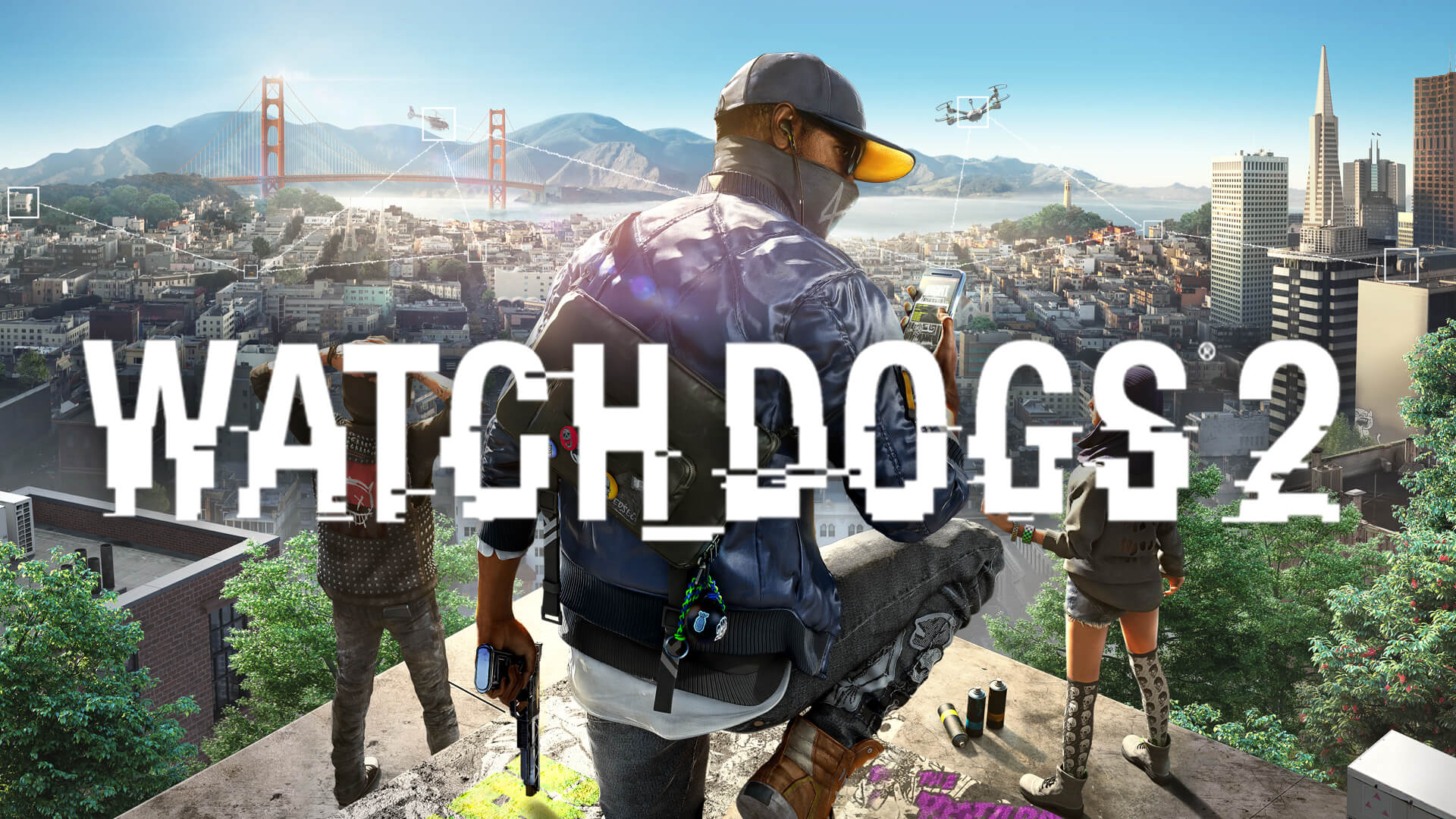
Watch Dogs 2 Not Launching Windows 11: Ultimate Fixes Guide
Struggling with Watch Dogs 2 not launching on Windows 11? Discover proven technical solutions, from file verification to compatibility settings, to get back in-game.
Published:
Table of Contents
Facing the frustration of Watch Dogs 2 not launching on Windows 11 can turn an exciting gaming session into a troubleshooting nightmare. As a dedicated hacker in the vibrant world of San Francisco, the last thing you want is for your game to crash before it even begins.
If you are experiencing the dreaded "splash screen flicker" or finding that your game simply refuses to open after clicking "Play" on Steam, you are certainly not alone. This guide provides comprehensive, step-by-step solutions to resolve these technical hurdles and ensure your Ubisoft experience is seamless.
Why is Watch Dogs 2 Not Launching on Windows 11?
The issue of Watch Dogs 2 not launching on Windows 11 often stems from compatibility conflicts between the aging game client and modern security protocols. Because the game relies on Ubisoft Connect (formerly Uplay) to manage authentication, any breakdown in the hand-off between Steam and the Ubisoft launcher can result in a silent crash.
Common Causes for Launch Failures
Category
Potential Issue
Authentication
Broken link between Steam and Ubisoft Connect
File Integrity
Corrupted game data or missing executable files
Permissions
Insufficient system access for anti-cheat services
Compatibility
Windows 11 security features blocking the launcher
Understanding these triggers is the first step toward a permanent fix. Whether it’s an outdated driver or a blocked process, we will walk you through the recovery process.
Step 1: Verify Game Files via Steam
The most reliable way to fix a game that won't start is to ensure all local files are intact. Community reports suggest that corrupted installation files are a leading cause of launch failures.
Right-click on Watch_Dogs® 2 and select Properties.
Navigate to the Installed Files tab.
Click Verify integrity of game files.
This process compares your local files against the official server version. If anything is missing, Steam will automatically download and replace the faulty data.
Step 2: Configure Administrator Permissions
Windows 11 often enforces strict security policies that prevent third-party launchers from executing properly. By granting administrative privileges, you allow the game to bypass restricted folder access.
Execution Steps
Right-click your Steam.exe shortcut.
Select Properties and head to the Compatibility tab.
Check the box labeled Run this program as an administrator.
Click Apply and OK.
Repeat for Ubisoft Connect
If you have a standalone Ubisoft Connect shortcut, apply these same administrator settings to the launcher's executable as well to ensure a smooth handshake between the two platforms.
Step 3: Addressing the Ubisoft Connect Link
A frequent complaint in community forums is the "infinite loop" where the game tries to launch, connects to the Ubisoft backend, and then returns to the Steam "Play" button without starting.
Troubleshooting the Launcher Link
Action
Purpose
Relink Account
Disconnect and reconnect your Steam account in Ubisoft Connect settings.
Clear Cache
Delete the cache folder within the Ubisoft Connect installation directory.
Reinstall Launcher
Download the latest version of Ubisoft Connect directly from their support portal.
According to player feedback, many users found that reinstalling the Ubisoft client entirely resolved the issue because it forced the platform to re-register the game's activation key on their system.
Step 4: Compatibility Mode and Anti-Cheat
Some users have reported that the Easy Anti-Cheat (EAC) service in Watch_Dogs® 2 causes conflicts with Windows 11. While it is tempting to bypass this, it is safer to use the built-in compatibility features first.
Adjusting for Windows 11
If the game still fails, try setting the compatibility mode to Windows 8 or Windows 10 within the executable properties. This tells the OS to handle the game process using legacy API calls that the game engine expects, which often stabilizes the launch sequence.
Step 5: Advanced System Checks
If basic fixes fail, you may need to look at your system's diagnostic reports. Ubisoft support often requests these to identify specific hardware or driver conflicts.
Essential Diagnostic Tools
DxDiag: Run dxdiag in your Windows search bar to save all information. This helps check for outdated GPU drivers.
MSInfo: Run msinfo32 to generate a system summary, which can reveal background software (like overlays or specific antiviruses) interfering with the game.
Tool
Focus Area
GPU Drivers
Check for recent updates from NVIDIA or AMD.
Antivirus
Temporarily disable to see if it's blocking the .exe.
Overlay Apps
Disable Discord or GeForce Experience overlays during launch.
FAQ: Watch Dogs 2 Technical Issues
Q: Can I skip the Ubisoft Connect launcher?
A: No, the game is designed to authenticate through Ubisoft Connect. Bypassing it usually leads to further errors or bans. Ensure your account is correctly synced.
Q: Why does my game show a splash screen for a second then close?
A: This usually indicates that the game is crashing during the initialization phase, often due to a permission error or a corrupted configuration file in your "Documents" folder.
Q: Is it safe to disable my firewall to run the game?
A: We do not recommend disabling your firewall permanently. Instead, add an "Exception" or "Allow" rule for both the Steam and Ubisoft Connect executables in your Windows Security settings.
Q: Will these fixes work for the Steam version of Watch Dogs 2?
A: Yes, this guide is specifically tailored for the Steam version of the game. If you continue to face issues, contacting official support with your MSInfo file is the recommended next step.