
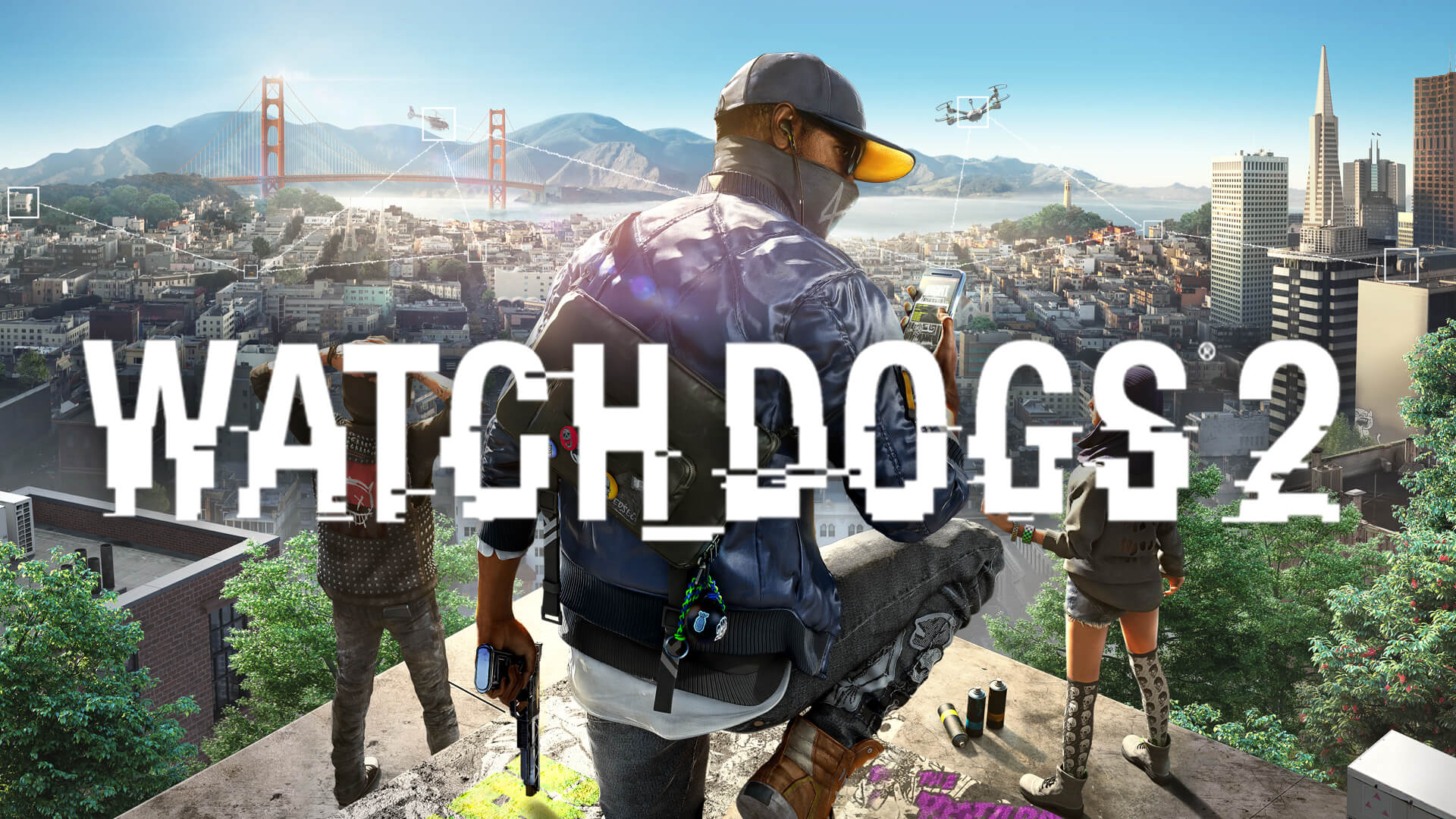
Returning to the vibrant, hacker-filled streets of San Francisco in Watch_Dogs 2 is a thrill, but nothing ruins the immersion faster than persistent shadow flickering. If you are experiencing a distracting Watch Dogs 2 flickering bug, you are certainly not alone, as many players on modern hardware have reported this graphical glitch. This guide will walk you through the most effective methods to stabilize your game and get back to hacking the city in peace.
Table of Contents
Understanding the Watch Dogs 2 Flickering Phenomenon
The flickering issue in Watch_Dogs 2 often manifests as rapid, annoying pulses in shadows or lighting effects, particularly on newer NVIDIA RTX 40-series and AMD RX 7000-series graphics cards. While the game remains a fan favorite, its age means that modern drivers and hardware architectures sometimes struggle with its older rendering engine.
According to community reports, this is rarely a sign of a failing GPU. Instead, it is typically a compatibility conflict between the game’s outdated engine and modern hardware’s rapid frame-processing capabilities. Below is a breakdown of why this happens:
| Factor | Technical Impact |
|---|---|
| GPU Architecture | Modern cards process frames faster than the engine expects. |
| Shadow Quality | High-intensity shadow maps trigger rendering conflicts. |
| Buffer Management | Pre-rendered frames can lead to sync issues in older titles. |
Quick Fix: Adjusting GPU Max Buffered Frames
One of the most successful solutions identified by the community involves limiting how many frames your CPU prepares for the GPU. By reducing the "GPU Max Buffered Frames" setting, you force the game to synchronize more closely with your monitor’s refresh rate, which often eliminates the flickering entirely.
How to Apply This Fix:
- Launch Watch_Dogs 2 and navigate to the Options menu.
- Select the Display tab.
- Locate the GPU Max Buffered Frames setting.
- Set the value to "2" or lower.
- Save your changes and restart the game to see if the flickering persists.
Performance Optimization While adjusting this setting, many players have reported that disabling V-Sync simultaneously provides a smoother, more consistent visual experience without the typical input lag associated with frame synchronization.
Exploring Alternative Troubleshooting Methods
If the buffer frame adjustment does not resolve your specific graphical issue, there are several other community-tested strategies. Many players have found success by tweaking specific graphic presets or utilizing third-party wrappers to modernize the game's API handling.
Community-Recommended Tweaks
- Shadow Quality Adjustment: Some users report that resetting all graphic settings to default and then manually setting Shadows to "Very High" can stabilize the rendering pipeline.
- Post-Processing: Simply toggling the "Post-Processing" feature to OFF has been documented as a fix for some players using specific driver versions.
- DXVK Implementation: Using DXVK (a Vulkan-based translation layer) can often resolve compatibility issues for DirectX 11 titles on modern hardware. However, be aware that this may conflict with anti-cheat software, potentially limiting your access to online multiplayer features.
| Method | Effectiveness | Pros | Cons |
|---|---|---|---|
| Buffer Limit | High | Simple, no files changed | May slightly affect input feel |
| Shadow Settings | Medium | Easy to revert | Does not work for all GPUs |
| DXVK Wrapper | High | Fixes deep API issues | Disables multiplayer |
Why Modern Hardware Struggles with Classic Titles
It is a common irony that high-end rigs, like those equipped with an RTX 4070 or 4090, often struggle with older games more than mid-range systems. This is primarily because the game's engine was never optimized for the way these newer cards handle shadows and temporal anti-aliasing.
When you encounter the Watch Dogs 2 flickering bug, it is usually the engine "over-calculating" the scene. Because Ubisoft has shifted focus to newer titles, official patches for this specific issue are unlikely. Consequently, the burden of finding a stable configuration falls on the community. For more information on the game's requirements and official support, you can visit the official Watch_Dogs 2 Steam page.
Managing Your Graphic Settings for Stability
For those who prefer a more manual approach, creating a "stable" profile is essential. If you are experiencing flickering, try these steps to isolate the culprit:
- Clean Installation: Ensure your graphics drivers are up to date, but if the issue started after an update, consider performing a clean install using DDU (Display Driver Uninstaller).
- Temporal Filtering: Some players note that keeping "Temporal Filtering" turned ON while adjusting shadow settings creates a more stable image.
- Limit Refresh Rate: Use your NVIDIA Control Panel or AMD Software to cap your frame rate to 60 FPS. This prevents the GPU from working harder than necessary, which often triggers shadow artifacts in older Ubisoft engines.
Frequently Asked Questions (FAQ)
Is the Watch Dogs 2 flickering bug permanent?
No, the Watch Dogs 2 flickering issue is not permanent and can usually be resolved by adjusting the "GPU Max Buffered Frames" setting to 2 or by tweaking your in-game shadow quality settings.
Will changing my graphics settings affect my save files?
No, changing graphical settings in the options menu is perfectly safe and will not affect your progress, save files, or character data in the game.
Should I use DXVK to fix the flickering?
Using DXVK is a powerful, effective fix, but it comes with a trade-off: it may interfere with the game's anti-cheat software, which would prevent you from playing in online multiplayer modes.
Why do only high-end GPUs seem to have this problem?
High-end cards are designed to process data at speeds the older game engine does not expect, leading to sync errors and visual artifacts. These cards often require manual frame limiting to operate correctly with older software.
Sources and known gaps
- RTX Flickering Bug, No Solution? :: Watch_Dogs 2 General ... Source accessed:
- Watch_Dogs 2 Source accessed: